May 31, 2011
Make an Appetizing Welcome Video
I believe that a good welcome video is a lot like a good appetizer. It’s small, tasty and whets one’s appetite for the real food that comes after. In the case of a congregational welcome video, it can be as short as a minute and as simple as a collection of inspiring photographs. But it should leave viewers wanting to find out more.
I created the above video using just 13 photos and a free online service called Stupeflix. It is very easy to use and I recommend it to any congregation that currently doesn’t have a welcome video on their website and is a bit flummoxed as to how to go about creating one. Oh, and did I mention that it’s free?
If you’re planning on placing a welcome video on your homepage, that video doesn’t need to list out your mission statement, service times, parking directions, etc. All of that information is important but it can presumably be found elsewhere on your website. Use video to convey what can’t be said through text - through inspiring images and hopeful music especially.
My Easy Recipe for an Appetizing Welcome Video
Ingredients:
- A YouTube account. Don’t have one? Here’s a link to the page where you can sign up for a YouTube account.
- Approximately 13 photos of your congregation engaged in dynamic work. In this example, I only included “outside photos” so as to highlight the Palm Sunday procession through the streets, the ministries taking place in Marcus Garvey Park, etc.
-
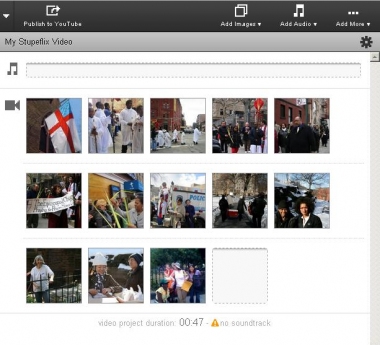 Once you’ve signed in to your YouTube account, click here to create a Stupeflix movie.
- You are then prompted to choose one of their three video styles. The above video was made in the “Outline” video style, though I was also tempted by the “Top 10” option because I think it might be fun to construct a “Top 10 Reasons Why You Should Visit Us” video.
- Once you’ve chosen your style, you will then be prompted to import your 13 or so images. Note - the video project length has to be kept to under one minute in order for this service to be free. Keep an eye on the video project length at the bottom of the page.
- To add music, click on “Add Audio” button on the upper right-hand side of the page. As you will see, you have the ability to choose from preselected audio as well as upload something of your own. The audio I chose was track from their “Music Lounge.” Enjoy exploring!
- To add Title Slides, click the “Add More” button on the upper right-hand side of the page. Unfortunately, I found this to be the least successful part of this video program. I found that I could add only a very limited amount of text.
-
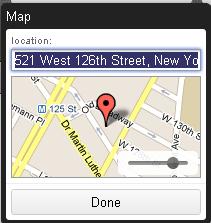 Clicking on the “Add More” button also gives you the option of adding a map as a slide. One note: once you’ve added your exact address, you will want to zoom in a bit on your neighborhood. (See image below)
- On the upper left-hand side of the page, press Publish to YouTube.
Updated July 12, 2011: St. Monica's in Cantonment, FL created a video using these instructions. You can find it here.
 RSS Feed